1. The repository and the commit
Author: Ángel Fernández Caravaca
Date: July 20, 2026
In the previous chapter we set up an identity and a signature, both described as something Git stamps on your commits. However, we never explained what a commit actually is. Now that we have the credentials to "talk" to GitHub and an identity that will be tied to you, let's move on to where the work lives, that is, what Git records and where it keeps it.
What is a repository?
A repository is simply a directory in your tree that contains the special .git folder. There is nothing more to it. If that folder is present, the directory is a repository, whereas if you delete it, the directory instantly goes back to being a normal folder, with your files intact but without any of their history.
Note
Here we mean a local repository: one that lives only on your machine and has not yet been connected to GitHub (its remote counterpart). Keep this distinction in mind, since for now everything happens locally, with nobody else involved.
Creating the local repository takes a single command, run from inside the directory you want to track:
After this, Git replies with something like Initialized empty Git repository in <path>/.git/. From this moment on, every command you run inside that directory or any of its subdirectories is tied to that .git folder (the repository).
Now, one point worth highlighting is how Git knows it is inside a repository and, above all, which one. Well, Git finds the repository by walking upwards from the current directory until it finds the first .git folder. Once found, the changes are tied to that repository.
Warning
This is precisely why you should not create a repository inside another one: Git will treat the nested .git folder as normal content (or silently ignore it), which leads to confusing and unpredictable behaviour about which repository actually owns your files.
The .git folder
Let's now take a look inside the .git folder that has just been created. Just run:
Some of the folders and files you will find here are:
-
objects/: this is the repository's database, and the most important folder of all. Every commit, every directory listing and every file content you create is stored here as an immutable object. This is where your history physically lives.There are three kinds of objects in this folder:
- A blob is the raw content of a file: just the bytes, exactly as they are on disk, in their crudest form. It does not even know its own name.
- A tree is a directory listing: it maps names to hashes, so it is the tree that knows a certain blob is called
README.md(think of it as the output oflsfor a single folder, a single level). A subfolder is not stored as a path but as the hash of another tree, so the full architecture of the repository is rebuilt by nesting trees, one level inside the next. - A commit points to a root tree (the root of the snapshot) as well as to its parent and its metadata (author, date, message). It contains no files and no list of changes, since the whole snapshot lives in that tree, and the "modified files" you see in
git showare a diff that Git computes on the fly by comparing two snapshots.
So a commit is a complete snapshot because it points to a tree, and that tree reaches every blob in the project at that moment. This also explains deduplication: a file that does not change between two commits has the same content, so it is the same blob, stored only once.
One last thing before moving on. If you open
.git/objectsyou won't find files literally calledblob,treeorcommit. Git names each object by its 40-character hash, split into a 2-character folder and a 38-character file name (so the hash5c1b14…lives in.git/objects/5c/1b14…). Each of those files is a blob, a tree or a commit, only compressed, which is why you inspect them withgit cat-fileinstead of opening them by hand. If you are curious, you can look inside any object:For example: for the object stored in
.git/objects/5c/1b14…, the hash is5c+1b14…, so you rungit cat-file -t 5c1b14….
Note
When you commit with git commit -m "<message>", Git immediately replies with a line like [<branch> <short-hash>] <message>. For example, [main a3f9c21] Add objects section. That <short-hash> is the first 7 characters of the new commit's full hash, and you can use it to refer to the commit in later commands (git show a3f9c21, git reset a3f9c21, etc.).
-
refs/: this folder contains text files with readable names. Each one stores the hash of a commit, that is, a unique code that identifies a commit.For example: the typical case is a branch file, such as
refs/heads/main, whose content is the hash of that branch's most recent commit. That hash is the identifier of a commit that lives inobjects/. Notice that the ref does not contain the commit itself (what you did), only the pointer to it. Also, when you make a new commit, Git rewrites the file so it points to the new commit, and the branch moves forward on its own.
It works like the contacts app on your phone: the "Mum" entry (the file) stores a phone number (the hash), nothing else. If your "Mum" changes her number, you have to rewrite it, and that rewrite is what a new commit does to the branch.However, branches are not the only kind of ref. The folder is organised into three subfolders (these are examples):
File in refs/ |
Contains | What the name means | What updates it |
|---|---|---|---|
heads/main |
the hash of a commit | the latest commit on your local main |
git commit |
remotes/origin/main |
the hash of a commit | where main was on the remote the last time you fetched |
git fetch / git pull |
tags/v1.0 |
the hash of a commit | the commit you marked as version 1.0 | git tag v1.0 (created, never updated) |
Important
A tag such as v1.0 is a name you pin by hand to a specific commit to mark it as significant, almost always a released version. Unlike main, which Git created for you on your first commit, a tag exists only because you explicitly ran git tag v1.0 on the commit you wanted to immortalise. And unlike a branch, a tag never moves: it stays pinned to that exact commit forever, so you can always go back to exactly what you released.
-
HEAD: a file that tells Git which branch you are on right now. -
index: this is the staging area, stored as a single binary file. When you rungit add, Git does not just mark the file as "ready"; it records in the index the content of the file at that moment. So the index is not just a list of names but a draft of your next commit.
Important
Editing a file after staging it leaves the staged version behind: the index stores the frozen content, not a live link to the file on disk. Also, there is a single index for the whole repository, which is why switching branches rewrites it.
config: the repository's local configuration. "Local" here means it applies only to this repo and overrides your global configuration in~/.gitconfig, the one you set withgit config --globalin Chapter 0. For example: you could change the identity used in this repo by runninggit config user.email ...without the--globalflag. It stores things like the URL of the remote this repo is linked to, local identities, etc. Unlikeobjects/orindex, it is a plain text file that you can read and edit by hand without any problem.
Note
The ~/.gitconfig file is Git's global configuration on your machine, that is, the "defaults" that apply to every repository you create. For example, this is where init.defaultBranch is set to decide what your initial branch is called: mine is called main, but you could call it root. This global configuration is usually edited by running a specific command in the terminal, not by opening the file by hand.
-
info/exclude: works exactly like.gitignore, but privately: it lives only in your.gitfolder, so it is never shared with anyone who clones the repository. We will look at.gitignoreitself later in this course; think of this file as its local-only sibling.At this point you might wonder: if it works exactly like
.gitignore, why would I use both? The reason is not what they do but who sees them:.gitignore: a versioned, shared file that is included in the repo's commits, so everyone who clones it gets the same ignore rules. Use it for what the whole project should ignore, such asnode_modules/orbuild/.info/exclude: lives inside.gitand is never shared, so it is a private.gitignorethat only you see. Use it for what only you need to ignore, such as editor or IDE clutter or a personal scratch file, without filling the shared.gitignorewith rules nobody else cares about. It is also the right tool when you contribute to someone else's project, where editing their.gitignorewould show up as an unwanted change in your contribution.
There is a subtler nuance that I think is worth mentioning. A
.gitignorerule is also shared, so the moment you writesecrets.txtin it, you never push that file, but you do announce to everyone that the file exists on your machine, since the rule travels with the repo for anyone to read. Putting the rule ininfo/excludekeeps the rule private too, not just the file, since you ignore it without leaving any trace that it was there.
Warning
Please don't take the previous paragraph as a security rule. info/exclude stops you from announcing that a file exists in a shared rule, but it does nothing to protect the file itself!
-
hooks/: scripts that Git can run automatically at specific points in your workflow, such as right before a commit or right before a push. The folder comes empty (with.sampleexamples), but this is exactly where tools such as linters or formatters hook in. For example, you may findhooks/commit-msg.sample, which runs after everygit commit. -
logs/: stores the reflog, a private record of everywhereHEADhas moved on your machine. Remember thatHEADmoves with almost everything you do. Every commit, branch switch orresetmoves it, and this file notes down each of those jumps. It is not the project's history; it is your local trail of "where I have been", and it never leaves your machine. That trail is a safety net: even after aresetthat seems to delete a commit, the reflog still remembers thatHEADwas there a moment ago, and that is how you get it back. We will come back to this later in the course. -
ORIG_HEAD: a companion to the reflog. Before certain operations that can rewrite history quite drastically (reset,merge,rebase), Git saves your previous position here, so thatgit reset --hard ORIG_HEADgives you a one-step way back if the operation goes wrong.
The rest (branches/, description, COMMIT_EDITMSG, FETCH_HEAD, packed-refs, etc.) is machinery that Git manages on its own. Some, like branches/, are leftovers from old workflows that nobody uses any more. Unlike the files above, at no point in this course will you need to open them or reason about them; they appear and are updated automatically by the operations you run.
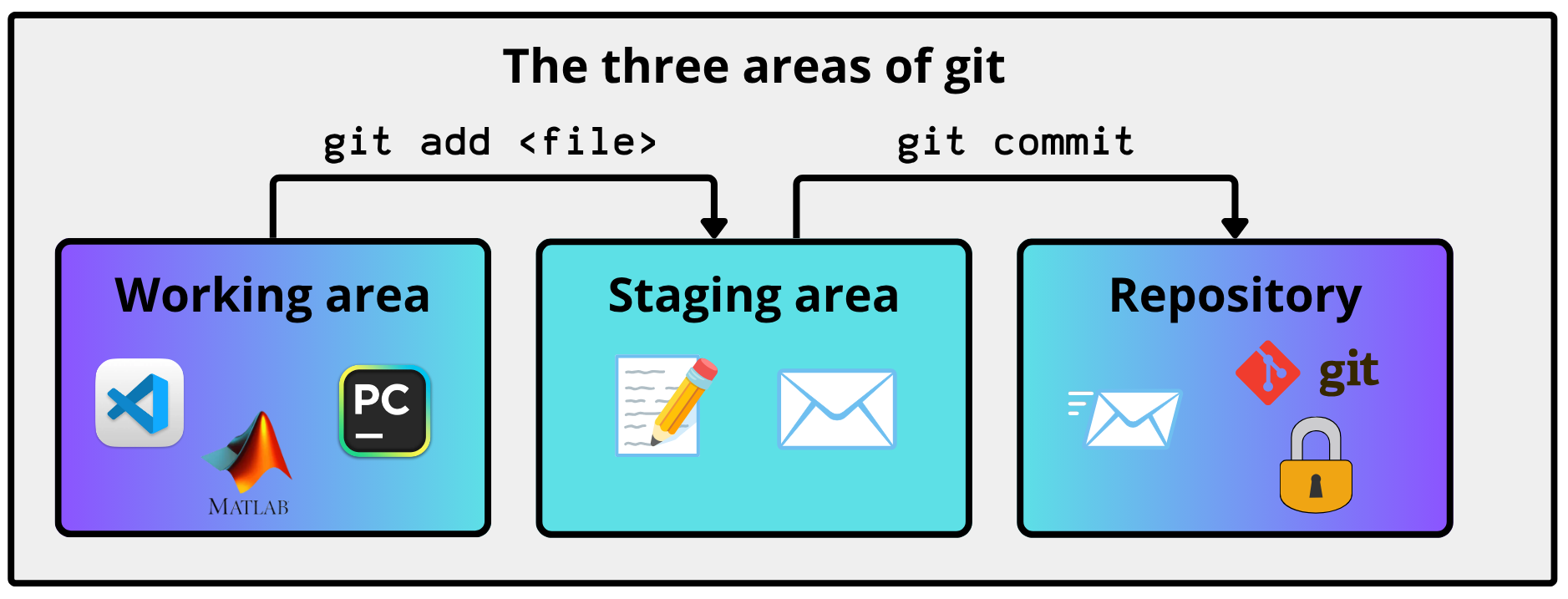
The three areas of git
Now that we know what a repository is, the next natural question is how a change travels from the editor to the history. Git does not take you from one to the other in a single step; it adds an intermediate area between them, so your files go through three areas in total before a change is recorded. It is worth understanding why that intermediate area exists, since it shapes how you will put together every commit from now on.
The three areas of git are:
-
The working area: your project directory as it exists on disk or, to keep it simple, what your editor opens and saves. It is the only area you manipulate directly, since it is where you write, break and fix your code. Right now, as I write this file, its latest content exists only in the working area.
-
The staging area (or index): the draft of your next commit. When you mark a change as ready with
git add <file>, Git copies the content of the file as it is at that moment to this area and keeps it there. Nothing is permanent yet, since you can add, remove or rebuild its contents as many times as you like, until the draft matches exactly what you want to record. -
The repository (history): the sequence of commits stored inside
.git/objects. Content arrives here when you rungit commit, and once it arrives it is permanent, immutable and safe to share.
Important
Any work that lives in the working area or in the staging area can be lost forever. However, once it reaches the repository, it can be recovered. Keep this in mind before making any drastic change to your files.
The reason this staging area exists is that what you have changed and what you want to record rarely match. During a single session it is common to touch lots of unrelated things: you might fix a bug, correct a few typos in the documentation and leave a new function half-written in a third file. Committing all of that at once produces a commit that cannot be described in one sentence and that, therefore, cannot be understood, reviewed or reverted as a unit.
The staging area is what lets you avoid that. Instead of recording everything you have changed, you put together each commit deliberately: first you stage only the bug fix and commit, then the documentation and make another separate commit, while the half-finished debugging code stays untouched in your working directory. The result is a history that reflects the logic of the project rather than the timeline of your afternoon, something easy to read and in which it is easy to revert one change without dragging the others along.
To sum up this section, the following diagram shows how these three areas connect and how your content moves between them:
Warning
Everything described in this section happens entirely on your local machine. The remote side, that is, GitHub and the push that sends your commits there, has not been introduced yet and belongs to a later chapter.
Reading your repo's status
Since files move silently between these areas, you need a way to ask Git where everything is right now. That is git status, and it is the command you will run more than any other:
In a repository with pending work, the output looks like this:
Read it as a direct map of the three areas described above:
-
Changes to be committed is the staging area. Everything that appears here will be part of your next commit, and nothing else.
-
Changes not staged for commit is the working directory. Git already knows these files, because they exist in the history, but the modifications you have just made have not been marked as ready.
-
Untracked files are files Git has never seen. Basically, they are new files. They are in your directory but not under version control, and Git will keep ignoring them until you git add them for the first time.
Note
Notice too that the output is not merely descriptive but instructive, since each section tells you the command that undoes it or moves it forward. It is worth taking advantage of this instead of memorising commands blindly.
Tip
Running git status before every add and every commit costs nothing and tells you exactly what state your repository is in: which files are staged, which are only modified and which are still untracked. This habit stops you from committing a file you didn't mean to include, or leaving out one you did.
For a compact view, once you feel comfortable with the concepts:
Personally, I only find this view useful once you have mastered the long format, so here I will just summarise it:
The short format uses two columns: the left column is the staging area and the right one is the working directory. The same letter means the same kind of change in either position; what changes is where it appears.
| Output | Left (staging) | Right (working) | Meaning |
|---|---|---|---|
M |
M |
— | modified and staged |
M |
— | M |
modified, not staged |
MM |
M |
M |
staged and modified again: the two versions differ |
A |
A |
— | new file staged for the first time |
AM |
A |
M |
added as new and modified again |
D |
D |
— | deleted in staging |
D |
— | D |
deleted in the working directory, not staged |
R |
R |
— | renamed, staged |
C |
C |
— | copied, staged |
?? |
? |
? |
untracked: Git has never seen this file |
UU |
U |
U |
merge conflict: both sides changed it |
Note
VSCode shows similar one-letter marks next to each file in the explorer (M, U, A…) and colours them by status. It is the same idea, although it does not use the two-column layout.
Add vs Commit
With the model clear, the two commands stop being ambiguous: git add selects, while git commit records.
git add
This command copies the current content of a file to the staging area. There are different ways to use it:
Three points here deserve attention.
First, git add is also what starts tracking a file. For an untracked file the command means "start versioning this", and for one that is already tracked it means "include these modifications in the next commit". It is the same command doing what is conceptually the same job: this content must be part of the next snapshot.
Second, git add captures the content at the moment you run it, not a live reference to the file. If you stage a file and keep editing it, the staging area keeps the previous version, which is exactly what the MM status above was telling you. Running git add again overwrites the staged copy with the latest content; you don't need to git restore --staged the previous add.
Third, git add . is convenient and, precisely because of that, the usual source of accidental commits: configuration files, notes, large binaries. The habit that prevents it is not to stop using it but to run git status right afterwards and read what you have actually added. The -p variant is the opposite extreme and is very useful when a single file contains two unrelated changes, since it walks you through the file chunk by chunk and asks whether each one should be staged.
git commit
This command takes whatever is in the staging area and writes it permanently to the repository:
The -m flag supplies the message on the same line. Without it, Git opens your configured editor, which is the better option when the change deserves more than one line.
The message is not decoration, since it will help you understand your repository's history. So take the time to write descriptive messages. Two conventions worth knowing:
-
Write the subject line in the imperative, describing what the commit does to the code.
-
Explain the why in the body, not the what. Explain what motivates the change.
The example below shows good practice. In particular, you will use it when working in a team. When working on your own you may lean towards the short version with -m, but even then try to keep the subject descriptive.
Note
A commit is local. Nothing has been sent anywhere, and git commit does not contact GitHub in any way, so it works perfectly well without an internet connection. Publishing commits is the job of git push, which we will see when we introduce remotes.
What is a commit?
We can now answer the question the chapter started with. A commit is a complete snapshot of your project at a given moment, together with the metadata that explains where it came from.
It is tempting to picture a commit as a set of differences applied on top of the previous one, since that is how git diff and git log -p present it. However, Git does the opposite: every commit stores the full state of the tree, not the changes that led to it. The diffs you see on screen are computed on demand by comparing two snapshots, and they are not what is stored on disk.
Specifically, every commit object contains:
- A reference to the full tree of files as it was at that moment.
- The identifier of its parent commit, that is, the immediately preceding state.
- The author and the committer, each with a name, email and date. These are precisely the values you configured in Chapter 0.
- The message you wrote.
- The GPG signature, when the commit is signed.
Hash all of that together and you get the commit's identity, which is shown when you run git log:
That identifier is not a sequential number assigned by Git. It is a cryptographic hash derived from the content itself. Three consequences follow from this that explain a good deal of Git's behaviour:
-
Commits are immutable. Changing anything, be it a single character of the message, a byte of a file or the date, produces a different hash and therefore a different commit.
-
History is a chain, and it gives away any tampering. Since every commit records its parent's hash, and its own hash is computed over that reference, altering the parent's hash forces Git to rewrite the hashes of all its children. So you cannot modify the past without it showing.
-
The same content produces the same objects. Storing complete snapshots seems wasteful, but a file that has not changed between two commits is not stored twice. Both trees simply point to the same object, since the content, and therefore the hash, is the same. Only what has actually changed takes up new space.
One last practical note. A commit records the state of the tree, so it also records the absence of a file: deleting a file and committing produces a snapshot in which the file does not appear, while it remains perfectly recoverable from any earlier commit. Nothing that has been included in at least one commit is ever lost, and that guarantee is what makes experimenting safe. That is why it pays to adopt this habit right now: commit early and often. A commit is cheap, entirely local, and it is the only thing that turns work into something Git can restore.
Summary
| Command | What it does |
|---|---|
git init |
Creates the .git folder, turning the directory into a repository |
git status |
Shows which area each file is in |
git status -s |
The same, in a compact two-column format |
git add <file> |
Copies the current content of a file to the staging area |
git add -p |
Stages changes selectively, chunk by chunk |
git commit -m "..." |
Writes the staging area to the history as a new commit |