3. Branches
Author: Ángel Fernández Caravaca
Date: August 6, 2026
Everything we have done so far happened on a single line of commits. Chapter 1 taught us how to record it and Chapter 2 how to read it and undo it, but always along that single line, where every commit builds on the previous one. This is enough while you work alone and on one thing at a time, but it stops being enough the moment you want to try something without putting at risk what already works. In this chapter we will learn how to open a second line of work, move between lines freely and understand why Git can do this almost for free.
What is a branch?
You may think of the word branch as a parallel universe of your files. Although that is a good intuition, it is not what a branch is. We already saw a branch in Chapter 1, when we opened the refs/ folder; we just hadn't called it by its name yet.
A branch is a plain text file inside .git/refs/heads/ whose entire content is the hash of a commit. That's all. If you have a branch called main, there is a file at .git/refs/heads/main, and if you open it you will find 40 characters and a line break. You can check it yourself:
So a branch does not contain commits, it points to one of them, and to exactly one at a time: the latest commit on that line of work, usually called the branch's tip. Everything else, that is, the rest of that branch's history, is reached by walking backwards along the chain of parents we described in Chapter 1, from that tip to the first commit.
Note
Remember the contacts app analogy from Chapter 1: the "Mum" entry stores a phone number and nothing else. A branch is the same idea: the name main stores a hash and nothing else. And just as you rewrite the number when it changes, Git rewrites that hash when the branch moves forward.
This is also the answer to a question people often ask much later: why is creating a branch instant, even in a huge repository? Because creating a branch means writing a 41-byte file. Nothing is copied, nothing is duplicated, no file in your project is touched. The commits already live in objects/, immutable and shared by anyone who wants to point to them, and a branch is just one more name pointing into that database.
HEAD, branches and commits
In Chapter 2 we defined HEAD as a pointer to a pointer, and now that definition finally pays off. There are three levels involved, and keeping them apart is what makes the rest of the chapter obvious:
HEADis a file that contains a path, such asref: refs/heads/main. It tells Git which branch you are on.- The branch (
refs/heads/main) is a file that contains a hash. It tells Git which commit is the tip of that line of work. - The commit lives in
objects/and points to its tree and its parent. It tells Git what the project looked like at that moment.
The interesting consequence is what happens when you commit. Git writes the new commit object and then rewrites the branch file so that it contains the new hash. HEAD is not touched at all, since it already pointed to the branch, and it simply follows it.
The moment you create a second branch, both files point to the same commit, and they stay together until you commit on one of them. From then on, each branch remembers its own tip, and the history stops being a line and becomes a fork: two paths that share a common past and disagree about the present.
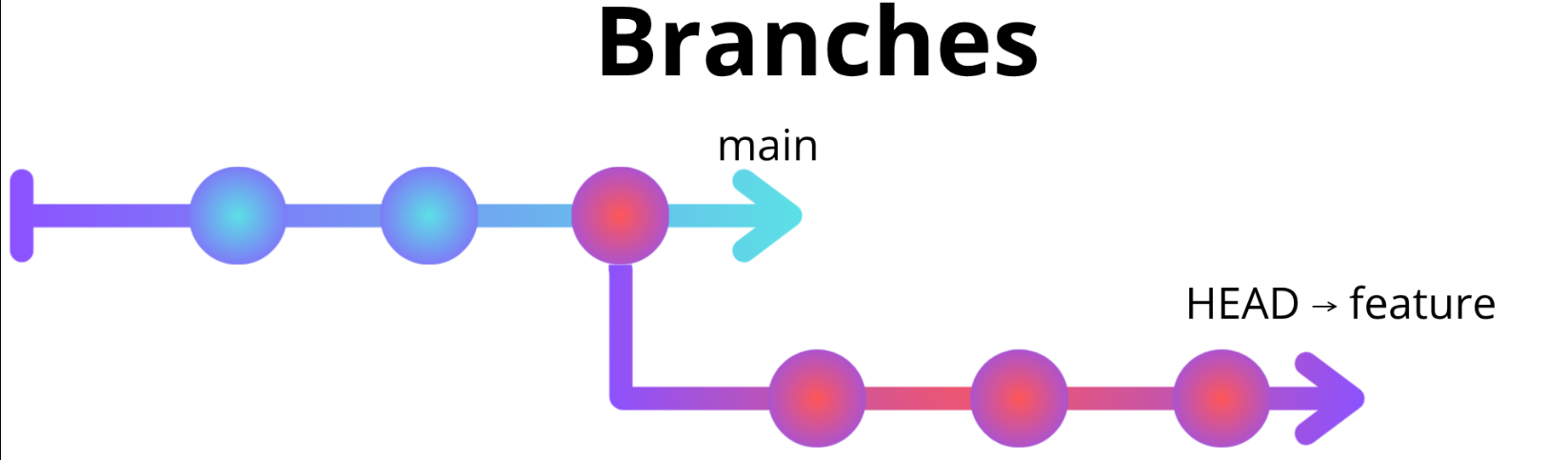
The following image gives an intuitive outline of how these three levels fit together. In particular:
The horizontal line is the history you already had, with main pointing to its latest commit. At the third commit you created a second branch, feature, which started out pointing to exactly the same place. From there you kept committing while on feature, so it is feature that moved forward, opening the second line, while main stayed pinned where it was. HEAD appears attached to feature, since it is the branch you are on now, and that is what makes your next commit grow from that tip and not from main.
Note
I hope these diagrams clarify the concepts rather than confuse. I came up with them myself, so feel free to suggest a better representation.
Creating and listing branches
The command that manages branches is git branch, and on its own it does not move you anywhere: it only creates, lists and deletes those files in refs/heads/.
When you run plain git branch, Git replies with something like this, where the asterisk and the colour mark where you are:
The git branch <name> <hash> variant deserves a comment, since it is the one that makes the idea that "a branch is just a pointer" concrete. You are not limited to branching from where you are: any commit in the history is a valid starting point, and the hash you need is the short one printed by git log --oneline. For example: if you realise a bug was introduced ten commits ago and you want to work on it from the state just before it appeared, git branch bugfix HEAD~10 creates a branch there, without moving you and without changing anything else.
Important
git branch <name> creates the branch but does not take you to it. This is probably the most common beginner mistake with branches: you create feature, keep working, commit, and later discover that all those commits have landed on main, because you never left it. Creating and switching are two different operations, and we will soon see that there is a single command that does both.
There are two more flags worth knowing, although they will make full sense after Chapter 4:
Read them as a safety check rather than a feature: --merged is the list of branches you can delete without losing anything, and --no-merged is the list of branches that still hold work that isn't anywhere else.
Moving between branches: switch and checkout
To move to another branch, that is, to make HEAD point to another file in refs/heads/, the modern command is git switch:
The -c variant is the one you will use most of the time, since it is exactly the combination the previous section warned about: it creates the file in refs/heads/ and rewrites HEAD to point to it, so you never end up committing on the wrong branch because you forgot the second step.
You will also come across git checkout everywhere, in older tutorials and in most of the answers you will read online. It is not deprecated and it still works, but I don't recommend using it, since it does too many unrelated things that I'd rather not get into. The following table shows how ambiguous this command is:
| Old command | Modern equivalent | What it does |
|---|---|---|
git checkout <branch> |
git switch <branch> |
Moves HEAD to another branch |
git checkout -b <branch> |
git switch -c <branch> |
Creates a branch and moves to it |
git checkout -- <file> |
git restore <file> |
Discards the changes in the working directory |
git checkout <hash> -- <file> |
git restore --source=<hash> <file> |
Recovers a file from a specific commit |
Personally, I recommend using switch and restore from the start. Not because checkout is wrong, but because that way the command's name tells you which of the two jobs you are asking for, and it is quite easy to type a checkout meaning one thing while Git understands the other.
Now, what actually happens when you switch branches? Git rewrites your working directory and your index so that both match the tip of the branch you are moving to. For tracked files, there are three cases:
- If it exists only on the branch you are leaving \(\rightarrow\) it is deleted from disk.
- If it exists only on the branch you are entering \(\rightarrow\) it appears on disk.
- If it exists on both \(\rightarrow\) it is rewritten with the version recorded on the branch you are entering.
There is something here worth highlighting. I mean it literally: "it is deleted from disk". If you run ls, the file is no longer there. However, it still exists as a blob inside the .git/objects folder, reachable from the commit of the branch you just left. When you come back, Git rewrites the file on disk and it reappears in the explorer. So it disappears from view, not from the history!
Note
Keep in mind that this whole section refers to tracked files. An untracked file does not belong to any branch, so switch never touches it.
The three cases above assume a clean working directory. If you switch branches with uncommitted changes, Git does not simply overwrite them. Instead, Git compares them with both tips and reacts in one of two ways:
- If your changes do not clash with the files that need to be rewritten, Git carries them over with you to the other branch. They stay in your working directory, still uncommitted, now on top of a different history.
- If they clash, Git refuses to switch and tells you so, instead of silently overwriting work that exists only on disk. The way out is to commit those changes or undo them with the
git restorewe saw in Chapter 2.
Important
This behaviour is a consequence of something already said in Chapter 1: only what has been committed is safe. A branch protects the work you recorded, not what you left half-written in the editor, since that content never reached the repository.
Tip
Run git status before every branch switch. It costs nothing, it tells you
which branch you are on and what you have pending, and it is the habit that prevents the two
classic accidents: committing on the wrong branch and getting blocked by
changes you had forgotten about.
Renaming and deleting branches
Since a branch is a file with a name and a hash inside, renaming it is exactly what you would expect, that is, renaming the file:
Caution
Don't assume that mv .git/refs/heads/old-name .git/refs/heads/new-name has the same effect. git branch -m also moves the reflog, updates HEAD if you are on that branch and renames the branch's section in config. A plain mv breaks all three, and it doesn't even work if the ref has been packed into .git/packed-refs. Never edit .git/ by hand for something Git provides as a command.
Deleting works in the same spirit, with two variants that differ only in how much they trust you:
It is worth stressing here what deleting a branch really means. Git removes the file from refs/heads/, and the commits are not deleted. They are still in objects/ exactly as they were, and the reflog described in Chapter 1 still remembers where HEAD has been. The only thing you lose is the name, that is, the convenient way of reaching those commits by simply running git switch <name>. They become unreachable by walking backwards from any living branch, but they haven't disappeared.
Since the commits are still stored in objects/, getting the branch back is easy. When you run git branch -d <name>, Git prints a line like Deleted branch <name> (was a1b2c3d), where a1b2c3d is the commit the branch pointed to. Recreating it is a single command:
And if you didn't note down that hash, git reflog (not git log) still lists every position HEAD has occupied, so you can find the tip there and point a new branch at it.
At this point you may wonder how long you really have to recover a branch. The commit dies in stages, not all at once:
- You delete the branch \(\rightarrow\) the commits are no longer reachable from any living branch.
- They are still in
objects/and the reflog still remembers them \(\rightarrow\) recoverable. - Time passes and the reflog entry expires \(\rightarrow\) harder to reach, but the object may still be on disk.
git gcruns and the object is older than the prune window \(\rightarrow\) irreversible.
Now, to clarify the difference between the two flags:
-dis the cautious one: it checks whether that branch's commits are already contained somewhere else and, if they aren't, it refuses and warns you. Use it when you are not sure about the work on a branch: its refusal is precisely the signal that those commits don't live anywhere else.-Dskips that check entirely and deletes the ref regardless. Use it only when you are sure you want to get rid of the branch.
Why branches are cheap
We can now close the argument the chapter opened with. In many older version control systems, creating a branch used to mean duplicating the project, something slow, costly and therefore rarely done. In Git the whole operation consists of writing a file, and this is not an implementation detail: it is what makes a whole way of working possible.
So here are some habits worth adopting:
-
One branch per unit of work. A feature, a bug, an experiment you are not sure about. If it works, you integrate it and, if not, you delete the branch and nothing has been lost.
-
Keep
mainstable. Since experiments live on their own branches, the branch everyone builds on keeps pointing to a working state. That way, a commit made while you are trying things out lands on your experimental branch, never onmain, and that is what keeps it stable. -
Branch often, delete often. Creating a branch and deleting it costs nothing. What is expensive is a half-finished experiment tangled up with work that was already fine.
This, of course, leaves the obvious question open: once a branch's work is done, how do you bring it back into main? That operation is called merge, and it is the whole content of Chapter 4, together with the situation in which both branches modified the same lines and Git cannot decide on its own, which is what Chapter 5 calls a conflict.
Summary
| Command | What it does |
|---|---|
git branch |
Lists your local branches, marking the current one |
git branch -v |
The same, adding the tip commit of each branch |
git branch -a |
Lists local and remote branches |
git branch <name> |
Creates a branch at the current commit, without moving |
git branch <name> <hash> |
Creates a branch at any commit in the history |
git switch <name> |
Moves HEAD to an existing branch |
git switch -c <name> |
Creates a branch and moves to it in a single step |
git switch - |
Goes back to the previous branch |
git branch -m <new-name> |
Renames a branch |
git branch -d <name> |
Deletes a branch, only if its work is integrated elsewhere |
git branch -D <name> |
Deletes a branch unconditionally |