4. Integrating branches: merge
Author: Ángel Fernández Caravaca
Date: August 6, 2026
Chapter 3 left us able to open a second line of work and to move between lines freely, but also with the obvious gap of how to bring it into the main branch. Without this, you would have two histories that never meet, and the experiment that worked out would stay forever separated from the branch everyone builds on. In this chapter we will learn how to bring one line of work into another, why Git sometimes does it by moving a single pointer and other times by writing a new commit, and how to read a history that is no longer a straight line.
What does merging mean?
Merging means integrating the commits of another branch into the branch you are on. The wording matters, because git merge is not symmetric: there is one branch that receives the work and another that provides it, and only the first one moves, that is, the one HEAD is attached to. The process is:
Read those two lines together, since the first is part of the operation and not a preliminary step. Because the branch being modified is the one HEAD points to, git merge feature while on main and git merge main while on feature are two different operations with two different results. In the example above, feature stays exactly as it was, that is, the same file in refs/heads/ with the same hash inside.
I see merging as a union operation between branches, not an overwrite, even though it sometimes looks like one. This is the mathematical way to understand it:
git switch X && git merge Y\(\rightarrow\)X = X ∪ Y: the branch you are on (X) absorbs the changes from the other one (Y). In particular, a change that exists only inXis not undone. Merging combines, it doesn't overwrite. This clean picture holds as long as the two branches touch different lines, since when they edit the same line there is no well-defined union, and Git raises a conflict (Chapter 5).
Tip
A common mistake here is merging in the wrong direction, that is, running git merge main while on feature when what you wanted was to update main. Nothing breaks and nothing is lost, but the branch that moved is not the one you intended. Run git status beforehand, exactly as Chapter 3 recommended before every branch switch.
With the three levels from Chapter 3 in mind (HEAD \(\rightarrow\) the branch file \(\rightarrow\) the commit), a merge is easy to describe mechanically: Git looks at the two tips involved and rewrites the hash inside the file of the branch you are on, sometimes after creating a new commit and sometimes without creating anything at all. Which of the two happens is not up to you, it depends on the shape of the history, and the next two sections cover both cases.
Fast-forward: when there is nothing to reconcile
Consider the simplest situation, which is also the most frequent when you work alone. You created feature from main, made a few commits on feature and didn't touch main in the meantime. So the tip of main is still one of the commits you pass through when walking backwards from the tip of feature, that is, main is an ancestor of feature.
In this case Git has no decision to make. Everything main contains is already contained in feature, so integrating means nothing more than saying "main is now here too". Git rewrites .git/refs/heads/main with the hash of feature's tip and stops. No new commit, no new object, no file rewritten in objects/, and the history remains the straight line it already was. The terminal tells you so explicitly:
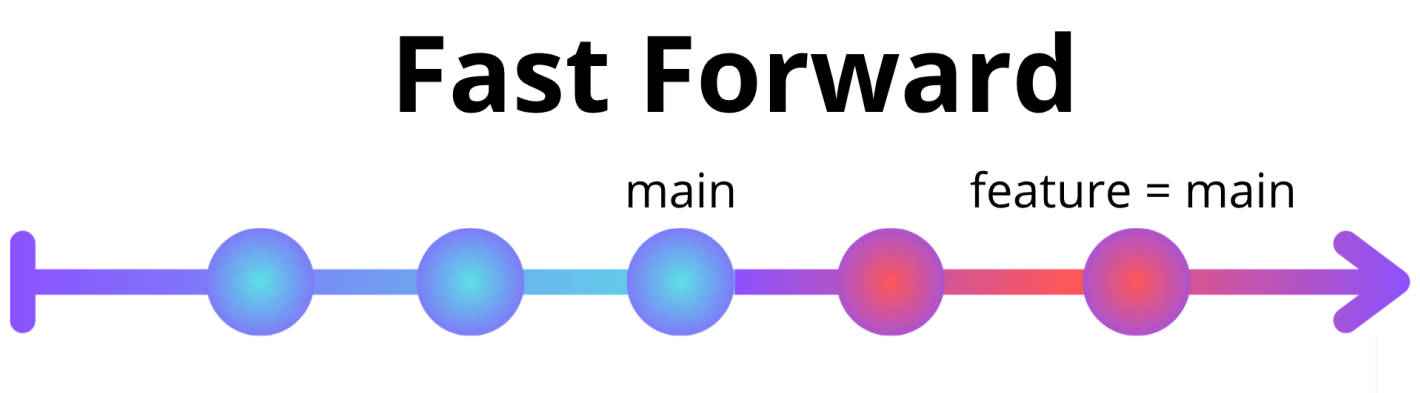
The name describes exactly what happened: the pointer slides forward along a path that already existed. The following image gives an intuitive outline of a fast-forward merge. In particular:
main stayed pinned at the commit where the fork happened, while feature moved forward with three commits of its own. Since there is nothing on main that feature doesn't already have, the merge doesn't need to combine anything: the main label simply travels along the existing line until it reaches the same commit as feature. After the merge, both names point to exactly the same hash, and the picture we were tempted to imagine as a fork turns out to be a single straight line.
Note
I hope these diagrams clarify the concepts rather than confuse. I came up with them myself, so feel free to suggest a better representation.
The merge commit: when both branches moved forward
Now the interesting case, the one that shows up as soon as someone else works on main, or as soon as you fix something on main while your feature was in progress. Both branches have commits the other doesn't have, so neither tip is an ancestor of the other. This is what we call a fork, that is, two paths that share a common past and disagree about the present.
Here no pointer can slide anywhere, because there is no path from one tip to the other. What Git does instead is compare three points:
- The merge base: the last commit both branches have in common, that is, the commit where they diverged.
- The tip of your branch, the one you are on.
- The tip of the branch you are merging in.
Git compares the base with each of the two tips, so it works out what each side changed since they diverged. From there, three situations are possible, and only the last one needs you:
- The two sides touched different files: Git takes both sets of changes, with no need to decide anything.
- They touched the same file but different lines: Git still combines them on its own, since the changes don't overlap.
- They changed the same region of the same file: now the two versions disagree line by line, and Git cannot pick one for you. This is what Chapter 5 calls a conflict.
The result of that combination is recorded as a new commit, and this commit has a peculiarity. In Chapter 1 we described a commit as an object that points to its tree and its parent, and that chain of parents is what git log walks backwards. A merge commit points to two parents: the tip your branch had before the merge and the tip of the branch you merged in, in that order. It is the only kind of commit that does so, and it is what makes the two lines of history join back into one. Once the commit exists, refs/heads/main is rewritten to point to it and HEAD follows, just as with any normal commit.
Since a commit is being created, Git needs a message, and it opens your editor with a default one already written:
You can accept it as it is or write your own. To skip the editor, run git merge -m "<message>" <branch>.
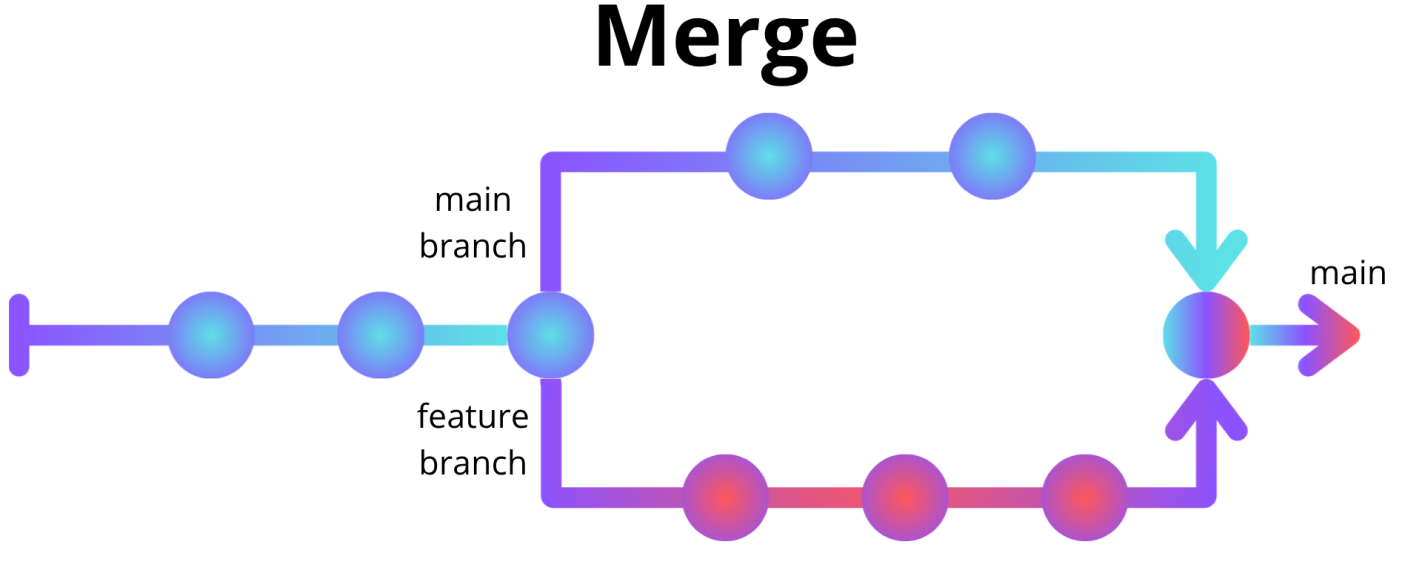
The following image gives an intuitive outline of a merge commit. In particular:
The fork starts at the third commit, which is the merge base. From there main kept moving forward with two commits of its own while feature moved forward with three, so both branches have work the other is missing and neither label can simply slide forward. So Git combines the three states and writes the commit drawn on the right, the only one in the image with two arrows coming in: one from the previous tip of main and another from the tip of feature. main and HEAD now point to that commit, while feature stays exactly where it was.
Note
I hope these diagrams clarify the concepts rather than confuse. I came up with them myself, so feel free to suggest a better representation.
Viewing and navigating a forked history
Until this chapter your history was a straight line and there was little to see. Merge commits change that, since the history now forks and joins again, and you need a way to see that shape and to move through it. Both needs are already covered by commands you met in Chapter 2, which only become really useful now that there is something branched to point them at.
The first is git log --oneline --graph, which draws the history as text, with the fork and the join represented in ASCII art:
What that command draws is Git's history, and it has a name of its own: directed acyclic graph, usually shortened to DAG. It is worth unpacking the name only because each part explains something you are about to use:
- It is a graph: commits are nodes joined by the parent relationship. A node can have one parent, two after a merge, or none in the case of the first commit. This is exactly what
--graphshows on screen. - It is directed: those links have a direction, and it always points backwards. A commit knows its parents, but a parent never knows its children, which is why Git always walks the history from the tip into the past and never forwards.
Note
Throughout this course I draw the arrows pointing forwards, in the direction time flows. It is a teaching choice, since I draw the history as you experience it, not as Git stores it. The actual parent pointers go the other way, since each commit points backwards to its parent, as we saw in Chapter 1. From my point of view, forward arrows read more naturally.
- It is acyclic: by following parents you can never get back to where you started, that is, a commit can never be its own ancestor. This follows from the hashing scheme in Chapter 1, where we said a commit's hash is computed from its content plus its parent's hash, so the parent must exist before the child's hash can be computed.
The graph being directed, with a merge's two parents in a specific order, is what finally makes sense of a detail we glossed over in Chapter 2. The HEAD~n notation was defined as n steps back, following the first parent each time, and on a normal commit that doesn't matter, since there is only one parent. On a merge commit, however, the two parents are ordered, and the order is not arbitrary:
| Reference | On a merge commit, it means |
|---|---|
HEAD^1 (or HEAD^, or HEAD~1) |
the first parent: the tip your branch had before the merge |
HEAD^2 |
the second parent: the tip of the branch you merged in |
HEAD~2 |
two steps back following the first parent each time, so it never enters the merged branch |
For example: if you merged feature into main and you want the state of main right before the merge, that is HEAD^1, whereas the tip of feature as it was merged is HEAD^2. Combined with Chapter 2, this is very handy: git diff HEAD^1 HEAD shows you everything the merge brought in.
Finally, three git log flags let you filter the graph according to that same first-parent structure:
--first-parent is the one worth remembering. In a repository where features are merged often, it answers "what has happened to this branch?" without drowning you in every individual commit of every branch that has ever been merged.
Controlling how the merge is done
We said that whether you get a fast-forward or a merge commit is decided by the shape of the history and not by you. That is the default behaviour, and the following flags are how you control it:
| Flag | What it changes | When it is useful |
|---|---|---|
--no-ff |
Forces a merge commit in a situation that would have been a fast-forward | Keeps the branch visible in the graph, so the history records that those commits were a unit of work |
--ff-only |
Rejects the merge unless it is a fast-forward | A safety check: it fails loudly when the branches have diverged, instead of silently writing a merge commit |
--squash |
Flattens all the branch's commits into staged changes, which you then commit yourself | Turns a messy branch of twenty small commits into a single clean one |
The first two read easily as a pair of opposites: --no-ff always writes the commit and --ff-only never does.
--squash deserves more attention, because it is the odd one out. It does not merge. Git computes the combined changes and leaves them in your staging area, and nothing else happens until you run git commit yourself. The commit you write then is a normal commit with a single parent, and it has no link to the branch the work came from.
Important
Since a squash merge does not create a second parent, Git does not consider the branch merged. git branch --merged won't list it and git branch -d will refuse to delete it, both for the same reason: as far as Git is concerned, those commits are still not reachable from anywhere else. That is the price of the single clean commit, and it is only worth paying when the branch's individual commits really have no value.
When Git can't decide: a first look at conflicts
Most merges finish on their own. Git combines the changes automatically as long as the two sides touched different things, and this covers many more cases than people expect: different files, different functions, even different lines of the same file. It only stops when both branches modified the same region of the same file, since then there is no rule that can pick a winner without guessing what you meant.
When that happens, the terminal tells you:
The important thing is to understand that the merge is not cancelled but left in progress. Git has already integrated everything it could, has written markers inside the conflicting files, and your repository is left in an intermediate state until you resolve it. git status becomes your guide here, listing the files under Unmerged paths.
From there you have two ways out:
--abort is the safety net worth knowing from day one: a merge that went wrong is never a point of no return, and a single command puts your branch back exactly where it was. Resolving the conflicts, that is, reading those markers and deciding what the file should finally contain, is the whole content of Chapter 5.
After the merge: cleaning up
We can now tie up the two loose ends Chapter 3 deliberately left open. Once feature has been merged into main, its tip is an ancestor of main, which means all its commits are reachable by walking backwards from main. So the name feature is no longer the only way to reach that work, and deleting it costs you nothing:
That is exactly why git branch -d refused before the merge and accepts afterwards. The check it performs has nothing to do with the branch being "finished"; it is about whether its commits are reachable from somewhere else, and a merge is precisely the operation that makes them so. --merged is the same check applied to every branch at once, which is why it is the list of names you can remove safely.
This also completes the habit Chapter 3 recommended, branch often, delete often: create one branch per unit of work, merge it when it is finished, delete the name and let the commits live on inside main's history, which is where they belong.
Tip
Run git log --oneline --graph right after every merge. It takes a second and
confirms the one thing you can't see in the command's output: whether you got a
fast-forward or a merge commit, and whether the branches joined as
you expected.
Summary
| Command | What it does |
|---|---|
git merge <branch> |
Integrates that branch into the branch you are on |
git merge -m "<msg>" <branch> |
The same, supplying the merge message without opening the editor |
git merge --no-ff <branch> |
Forces a merge commit even if a fast-forward was possible |
git merge --ff-only <branch> |
Merges only if it can be a fast-forward; otherwise refuses |
git merge --squash <branch> |
Brings the changes in as staged work, for you to commit |
git merge --abort |
Cancels a merge in progress and restores the previous state |
git merge --continue |
Finishes the merge once the conflicts are resolved and staged |
git log --oneline --graph |
Draws the history as a graph, showing forks and joins |
git log --first-parent |
Follows only the first parent, hiding the commits of merged branches |
git log --merges / --no-merges |
Shows only merge commits, or everything except them |
git branch --merged |
Lists the branches you can delete without losing anything |
git branch -d <name> |
Deletes a branch, which now works because it has been merged |
We have covered the case where Git manages on its own, and we have mentioned twice, without ever showing it, what happens when it can't. That is the topic of Chapter 5: why two branches end up disagreeing about the same lines, what those markers Git writes into your files really mean and how to resolve a conflict without losing either side of the work.